DATEV payroll export
The DATEV export produces a payroll file from the time recorded in ChronoHub, for import into DATEV Lohn und Gehalt or LODAS. It is set up once under Administration → DATEV Export Setup and then run for each period under Time Management → DATEV Export.
The export is a module: both entries appear only when your plan includes it. See Module entitlements.
Who may do what
| Administrator | Manager | HR | Employee | |
|---|---|---|---|---|
| Open DATEV Export Setup | Yes | No | No | No |
| Run the export | Always | When permitted | When permitted | No |
| Employees included in their export | Everyone | Themselves and the members of the teams they manage | Everyone |
Who besides administrators may run the export is set under Permissions on the setup page. Managers and HR are permitted unless an administrator clears them. The menu shows DATEV Export only to those permitted.
Setting up the export
Set up the four sections of DATEV Export Setup in this order. Each section has its own Save button.
- Client Settings: the file format.
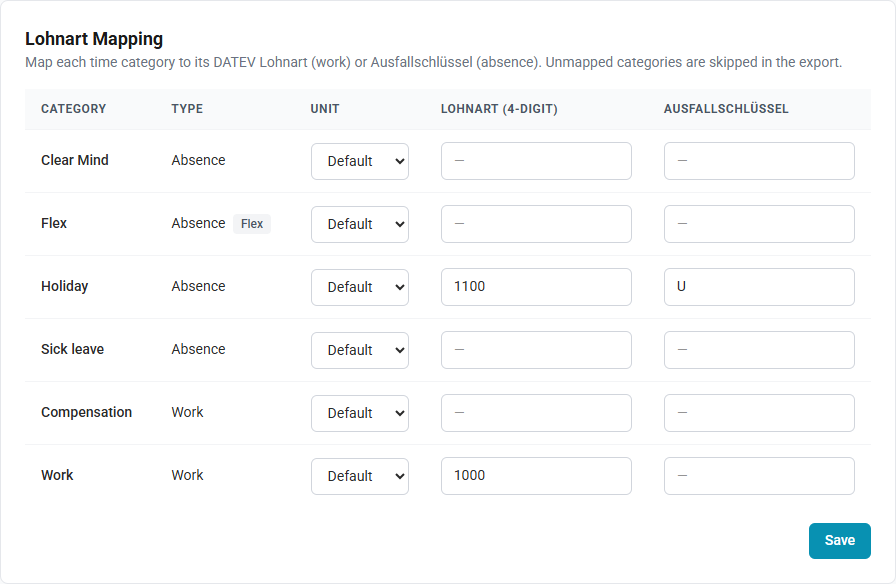
- Lohnart Mapping: which DATEV code each time category is exported under.
- Employee Personnel Numbers: each employee's DATEV Personalnummer.
- Permissions: who may run the export.
A category without a mapping, or an employee without a Personalnummer, is left out of the file. The export reports them, so the setup can be completed afterwards, but the file is only complete once both are in place.
Client Settings
| Field | What it does |
|---|---|
| Client number | Becomes part of the file name |
| Decimal separator | Comma (,) or Dot (.), for the hours in the file |
| File encoding | Windows-1252, which DATEV's import usually expects, or UTF-8 |
| Target system, Consultant number, Default currency | Recorded with the settings. The payroll file does not use them |
The section Accounting export (EXTF) holds Fiscal year start, GL account length, Expense clearing account and Labor clearing account. As the section says, these are used only by the accounting export, not by the payroll file.
Lohnart Mapping
Every time category is listed, with its type. For each one:
- Unit: Hours or Days. Default exports work categories in hours and absence categories in days.
- A category exported in hours needs a Lohnart (4-digit): up to four digits.
- A category exported in days needs an Ausfallschlüssel.
A category whose unit needs a field that is empty is skipped. Categories are maintained under Timecard categories.
Employee Personnel Numbers
Every active employee is listed with their code and name. Enter each person's Personalnummer as it is recorded in DATEV, and select Save. A person left blank is skipped. Each Personalnummer can belong to one person only; a list in which two people share one is refused, and nothing in it is saved.
To find someone in a long list, type part of their name or code in Search by name or code above it. The search only narrows what is shown: Save still saves the Personalnummer of every employee, including those hidden by the search.
Permissions
Tick, for each role, Run export to allow it to produce the file. Administrators are always allowed. The table also lists View configuration and Edit configuration; the setup page itself opens only for administrators.
Running the export
How to produce the payroll file
- Open Time Management → DATEV Export.
- Enter the period in From and To, within one calendar month. The current month is filled in.
- To narrow the file, search for a Department or an Employee by name or code, and choose it. A department includes the people whose primary department it is.
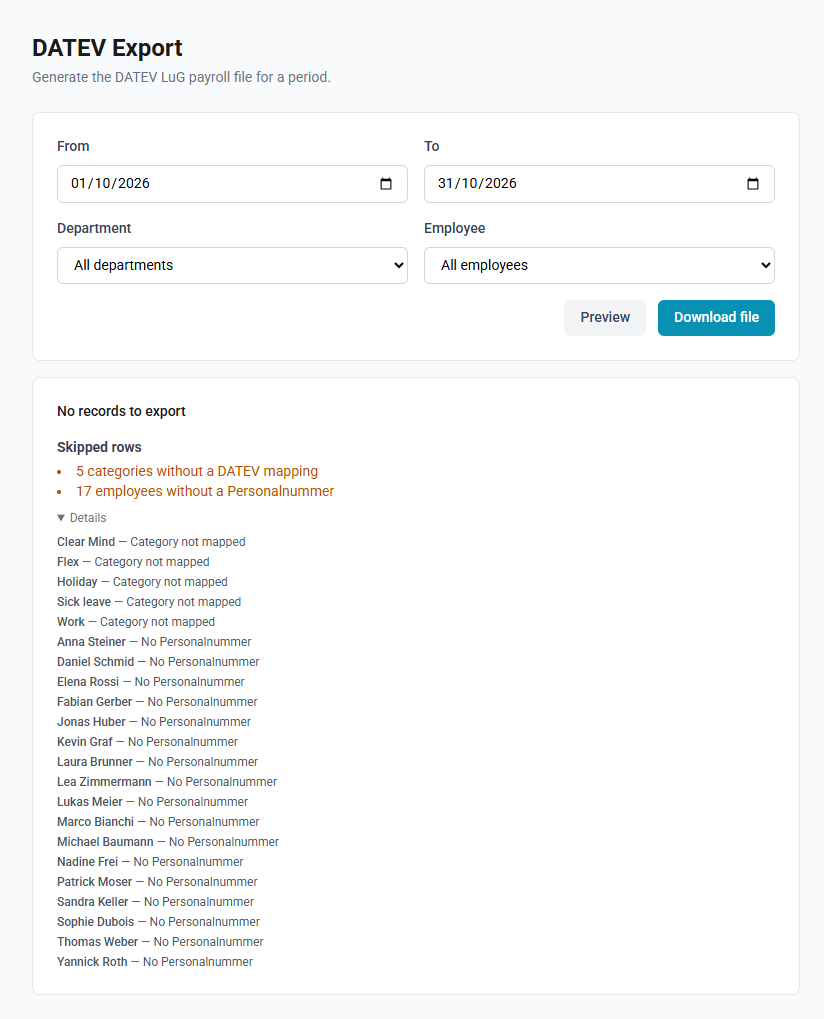
- Select Preview.
- Check the number of records, and the Skipped rows.
- Select Download file.
An export covers one calendar month, as payroll is run monthly. For a period across two months, the page says so, and Preview and Download file are unavailable until the dates lie within one month.
The preview is optional: Download file works without it. It reports how many records the file will contain, and, under Skipped rows, how many categories have no DATEV mapping and how many employees have no Personalnummer. Details names each of them. If nothing is skipped, the preview says so.
What the file contains
The file covers the timecards in the period, which include approved absences. It holds one line per employee and code for the whole period:
- Hours categories: the total hours, under the category's Lohnart.
- Days categories: the number of days, under the category's Ausfallschlüssel. Each date counts as the share of the person's scheduled working day that the absence covers: a full day counts as 1, half a day as 0.5. A date without scheduled hours, such as a day off or a day without a schedule, counts as one day. The number is given to two decimals, and a line that adds up to no time is left out.
Each line also carries a cost centre: the employee's own where one is recorded, otherwise the code of their primary department.
The file is plain text, one record per line, with the fields separated by semicolons and no header line: Personalnummer; Kalendertag; Ausfallschlüssel; Lohnartennummer; Stundenanzahl; Tagesanzahl; Wert; Abweichender Faktor; Abweichende Lohnveränderung; Kostenstellennummer; Kostenträger. In DATEV, the import is set up to read these fields. The file is named CHRONOHUB_LUG_, the client number, and the year and month of the From date, for example CHRONOHUB_LUG_10001_202610.txt.