Schedules
A schedule is the weekly working pattern that applies to an employee: which days they work, from when to when, and with what break. A schedule template describes the pattern once, under Master Data → Schedule Templates; a schedule assignment gives it to an employee for a period, under Team Management → Schedule Assignments.
What a schedule decides
- The hours of an absence request. A request costs the hours the schedule expects on each day in it. See Understanding the hours on an absence request.
- Flex. Hours worked beyond the schedule's expected hours are banked. An employee without a schedule banks every hour worked. See Flex and opening balances.
- Timecard defaults. Use schedule on the timecard form takes its times from the schedule, and filling a period skips the days it does not work. See Recording timecards.
- Non-working days on the calendars. The team and department calendars shade the days a person's schedule does not work. A person with no schedule for a date is shown without shading.
- Public holidays. Whether a holiday is a day off depends on the schedule; see below and Public holidays.
Employees see their own schedule under My Schedule; see Seeing your working schedule.
Schedule templates
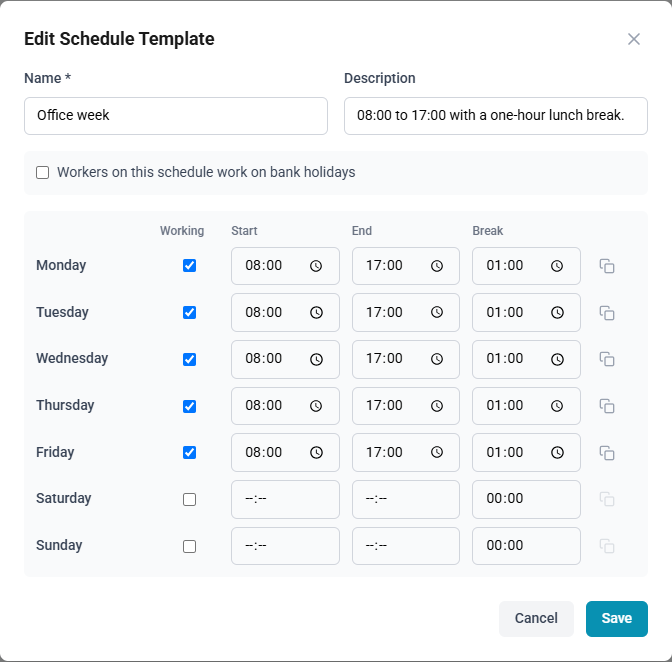
The form shows one row per weekday, Monday to Sunday. Tick Working on each day the schedule works and enter its Start, End and Break. A day may end before it starts, for a shift that runs past midnight; start and end may not be the same. An empty break counts as no break.
A template starts as Monday to Friday, 09:00 to 17:00 with a one-hour break, and the weekend off.
The copy button at the end of a working day's row, Copy these times to all working days, copies that day's start, end and break to every other day ticked as working. It does not tick or clear any day.
Workers on this schedule work on bank holidays decides what a public holiday does. Cleared, which is the default, a public holiday is a day off: it costs nothing in an absence request and expects no hours. Ticked, public holidays are ordinary working days, as for shift work that continues through them.
The list shows each template's working days and, when every working day has the same times, the times.
How to create a schedule template
- Open Master Data → Schedule Templates and select New.
- Enter the Name, which must be unique, and optionally a Description.
- Tick or clear Workers on this schedule work on bank holidays.
- For each day, tick or clear Working, and enter the Start, End and Break of the working days.
- Select Save.
A change to a template applies to everyone assigned to it.
A template cannot be deleted while any assignment, past or current, uses it.
Schedule assignments
An assignment gives one employee one template from Effective from to Effective to. Leave Effective to blank for an open-ended assignment, shown as — current —. An employee's assignments may not overlap; to change someone's schedule, end the current assignment the day before and create the next one.
Location is an optional free-text site or address, such as a branch office. When the assignment covering today has one, the employee's home page shows it on the Today's location card. See The home page.
On an existing assignment the employee is fixed; the template, dates and location remain editable.
The list of assignments shows twenty at a time, with paging above and below. To see one person's assignments, choose them under Employee above the list; Clear shows everyone's again.
How to assign a schedule
- Open Team Management → Schedule Assignments and select New.
- Choose the Employee and the Schedule template.
- Enter Effective from, and Effective to if the assignment ends.
- Optionally, enter the Location.
- Select Save.
Assigning a whole team
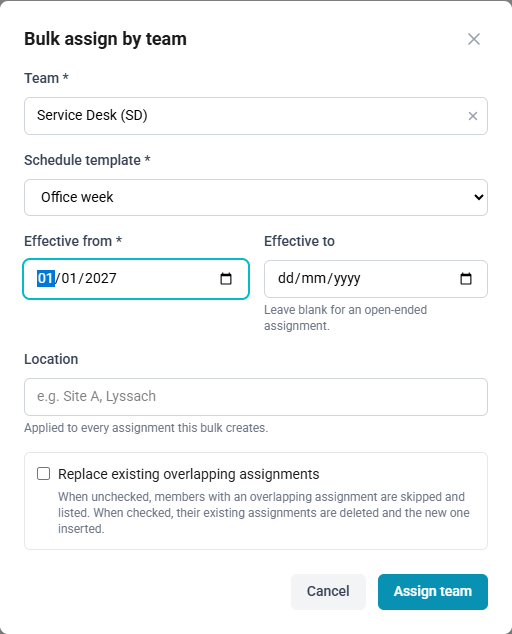
Bulk assign gives one template to every active member of a team. The team's manager is included only if they are a member of the team. The Location entered applies to every assignment created.
Replace existing overlapping assignments decides what happens to members who already have an assignment in the period:
| Option | Result |
|---|---|
| Cleared | Those members are skipped and listed. Their assignments stay as they are. |
| Ticked | Their overlapping assignments are deleted in full, including any earlier dates they covered, and the assignment entered is created. |
The result reads, for example, 5 added · 0 replaced · 1 skipped, followed by the members skipped. Retry with replace existing runs the same assignment again with replacing ticked; Assign another team returns to an empty form.
Because a replaced assignment is deleted in full, a member assigned open-ended since an earlier year loses that history. To keep it, clear the option, then end the skipped members' assignments individually and assign them the schedule one by one.
How to assign a schedule to a team
- Open Team Management → Schedule Assignments and select Bulk assign.
- Choose the Team and the Schedule template.
- Enter Effective from, and Effective to if the assignment ends.
- Optionally, enter the Location.
- Tick or clear Replace existing overlapping assignments.
- Select Assign team.
Who may do what
| Role | Schedule templates | Schedule assignments |
|---|---|---|
| Administrator | Creates, edits and deletes | Anyone's; bulk assigns any team |
| HR | — | Anyone's, one at a time |
| Manager | — | Their own and those of the members of teams they manage; bulk assigns the teams they manage |
| Employee | — | Sees their own under My Schedule |