Materials and expenses
Materials are items used for a business partner, such as spare parts. Expenses are costs incurred for a business partner, such as travel, with an amount, a currency and, if needed, a receipt. Both can belong to an effort or stand on their own, and both can be included in documents created in SAP Business One.
They are recorded in two places:
- On the Materials and Expenses tabs of an effort, when they belong to that effort. See Recording efforts.
- On the pages Effort Management → Materials and Effort Management → Expenses, which list every material and expense, whether entered there or on an effort.
A line added on an effort's tab takes the effort's business partner and employee, and an expense also takes the effort's date. It then appears on the list page, linked to the effort. A material or expense linked to an effort on the list page appears on that effort's tab in the same way.
Who records them for whom
The same rule applies as for efforts: employees for themselves, managers for themselves and the members of the teams they manage, administrators and HR for anyone.
How to record a material
- Open Effort Management → Materials and select New.
- Choose the Business Partner and the Item.
- Check the Employee, which starts with your own name.
- To link the material to an effort, choose the Effort. Only efforts for the chosen business partner are offered.
- Enter the Quantity, if needed.
- Clear Chargeable if the material is not to be charged.
- Select Save.
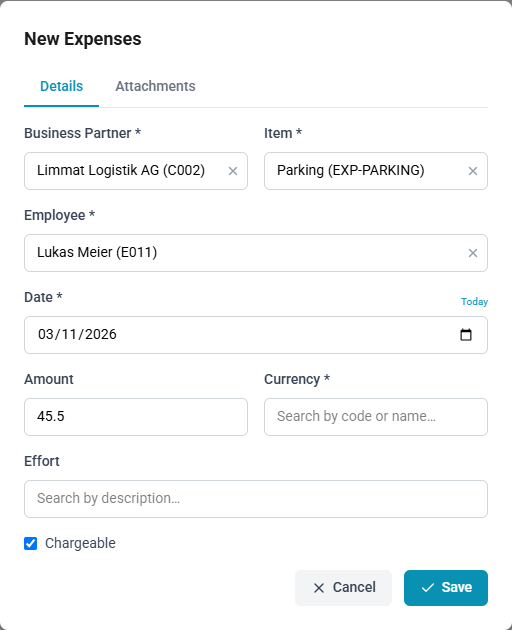
How to record an expense
- Open Effort Management → Expenses and select New.
- Choose the Business Partner and the Item.
- Check the Employee, which starts with your own name.
- Enter the Date and the Amount.
- Choose the Currency.
- To link the expense to an effort, choose the Effort.
- Clear Chargeable if the expense is not to be charged.
- To add a receipt, open the Attachments tab and add the file; see below.
- Select Save.
Chargeable
Chargeable decides whether the line is charged to the business partner. A line that is not chargeable can still be included in a document in SAP Business One, where it appears with a 100 % discount. The cards in the list mark such lines Chargeable: No.
The currency of a new expense
Every expense needs a currency, and a new expense starts with one of two defaults:
| Organisation's setting | A new expense starts with |
|---|---|
| Preferred currencies are set under Settings → Currencies | No currency. Selecting the field lists the preferred currencies first |
| No preferred currencies are set | The currency of your browser's language and region, for example CHF for German (Switzerland) |
When the browser's language names no region, or a region ChronoHub does not recognise, the field starts empty. Saving without a currency is refused with a message asking for one. See Settings.
Receipts
An expense's Attachments tab holds its receipts. JPEG, PNG, WebP and PDF files are accepted, up to 25 MB each. On a new expense, the files are listed with Will upload after save and are uploaded once the expense is saved. If an upload fails, the expense is saved nonetheless and the form stays open, so the file can be added again or removed.
How to add a receipt
- Open the expense, and the Attachments tab.
- Select the upload area to choose a file, or drop the file on it.
How to open or remove a receipt
- Open the expense, and the Attachments tab.
- Select the file's name to open it, or Delete to remove it, and confirm.
Whoever may see an expense may open its receipts: the employee, the manager of their team, administrators and HR. The same people may add and remove receipts while the expense is open. A closed expense's receipts can be opened, not added or removed; see below.
Materials have no attachments.
Closed materials and expenses
A material or expense included in a document in SAP Business One is closed. It cannot be edited or deleted, its form opens for viewing only, its receipts stay as they were invoiced, and its status shows the document, for example AR Invoice #1234. Closed lines are hidden from the lists until Show closed is ticked.
The lists
- Show all employees (administrators and HR) and Show team members (managers) add the lines of everyone you may see. Without it, the lists show your own. The choice is remembered in this browser, separately for each page.
- From and To above the list narrow it to a period. When the list includes other people's lines, Employee narrows it to one person. Select Apply, or Clear to show everything again. A material is dated by its effort, or, entered without one, by the day it was entered; the Materials list shows that date.
- In the card view, Sort by orders the cards, and the button beside it switches between ascending and descending. In the table view, select a column heading. Both views keep the same order.
- Hovering the ⓘ icon shows the effort, the source, chargeability and status; selecting it opens the line's info card.