Seeing your working schedule
My Schedule shows the working pattern that applies to you. It is read-only — your schedule is set by your administrator — but it is worth knowing where to find it, because it decides more than it might appear to.
Why it matters
Your schedule is what turns a range of dates into hours. When you request an absence from Friday to Monday, the system does not count four days; it counts the hours your schedule says you would have worked on each of those days. A Monday-to-Friday schedule makes that two days. A schedule including weekends makes it four. Both are correct — the difference is the schedule.
It also decides which days the calendars shade as non-working, and what the timecard form offers as your expected hours.
What the page shows
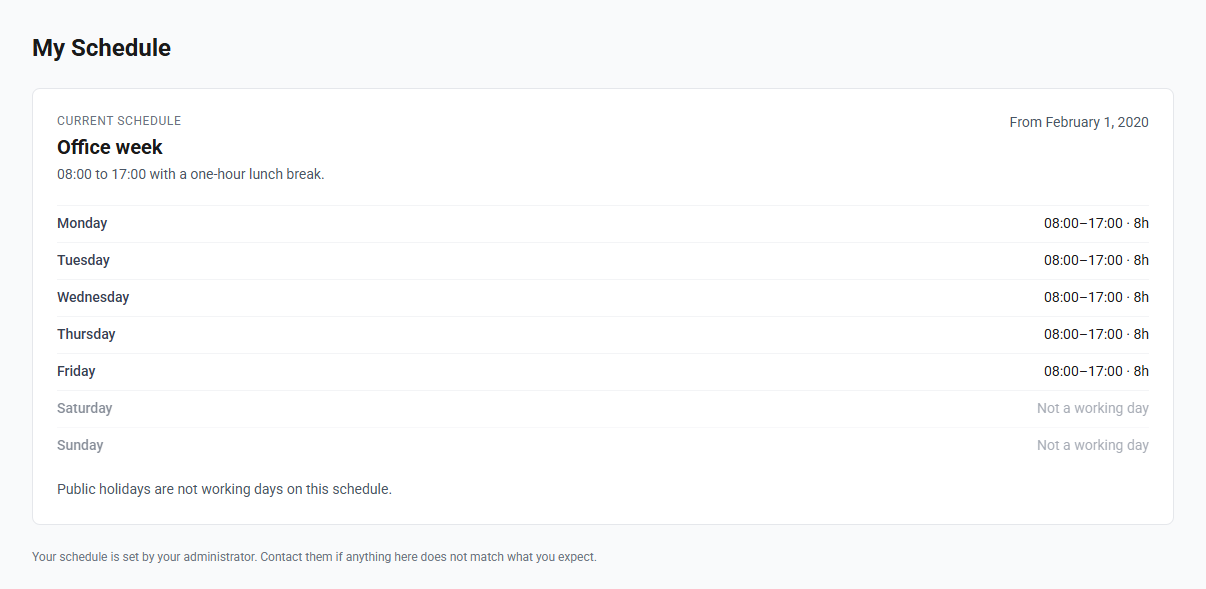
Your current schedule — its name, the period it applies for, and the location if one is set for you.
Your week — Monday to Sunday, each day either its hours or marked as not a
working day. The hours shown are net of your break, because that is the figure
an absence request deducts. A day reading 09:00–17:00 · 7h is an eight-hour
span with a one-hour break.
Whether public holidays are working days. Most schedules treat them as days off, so a public holiday inside an absence request costs you nothing. Some schedules — shift work in particular — do count them. The page says which applies to you, and it is the detail people are most often surprised by.
Any upcoming change. Schedules are assigned for date ranges, so if a different one is already recorded to start later, you will see it here before it takes effect rather than on the morning it lands.
If no schedule is assigned to you
The page will say so. This is worth acting on rather than ignoring: without a schedule your absence requests cannot be calculated at all, and will come back as zero hours. Ask your administrator to assign one.
Getting there
From the menu, or from the location card on your dashboard. There is also a link on the absence request form, next to the list of days that were not counted — which is usually the moment the question comes up.