Flex and opening balances
Every employee has two kinds of balance. The flex balance is an hour bank: time worked beyond the schedule is banked, and later taken as time off. The allowance balances, such as holiday, come from the entitlements on the employee's contract. This page explains both from the administrator's side, and how to correct them: flex on the employee's Flex tab, allowances on the Opening balances tab.
How flex hours accrue
ChronoHub compares, for each period, the hours an employee's timecards record with the hours their schedule expects. What lies beyond the expected hours is banked automatically, and recalculated whenever a timecard in that period is added, changed or deleted.
- The period is a day, a week (Monday to Sunday) or a calendar month, depending on your workspace. The Flex tab shows it beneath the cap.
- Approved absences count as worked, at the scheduled hours of their days. A day of holiday balances its day exactly, so overtime on other days of the period is still banked.
- Hours short of the schedule are not deducted, unless the company ticks Take off hours short of the schedule in Settings. Then a day with work recorded by hand counts either way, and the balance may go below zero; a day with nothing recorded by hand still counts as worked as scheduled. See How time is counted.
- An employee without a schedule banks every hour they record, since nothing is expected of them. See Schedules.
The cap
A cap limits the balance. Once it is reached, further hours are not banked; the employee's home page says so. The cap can differ per employee. The Cap figure shows it, or No cap.
Taking flex
Employees take flex by requesting an absence in a category marked Flex (hour bank). A pending request already counts as taken; a rejected one returns its hours. See Requesting an absence and Timecard categories.
At year end
What happens to a positive balance on 31 December is set under Settings → Absences and holidays → Flex balance at year end:
| Option | On 31 December |
|---|---|
| Carry over in full | The whole balance moves into the new year |
| Lapse | The balance returns to zero |
| Carry over up to a limit | Up to Limit (hours) moves on; the rest lapses |
A negative balance always carries over in full.
A change applies from 31 December of the current year. Earlier year ends keep the rule that applied to them, so past balances do not move. The year end is calculated rather than run on the night: a December timecard corrected in January still counts in December's year.
Beneath the balance, the employee and the administrator see what the coming year end will do, for example 12h will lapse on 31 December. Hours that lapsed appear in Recent activity as Year end.
The Flex tab
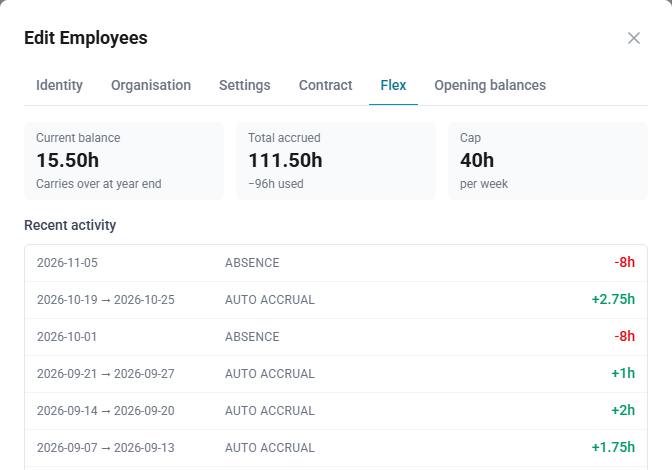
Open the employee in Master Data → Employees and select Flex.
| Figure | What it shows |
|---|---|
| Current balance | This year's balance, after every earlier year end |
| Total accrued | Everything banked; beneath it, what was used, what lapsed and, where the company takes them off, the hours short of the schedule |
| Cap | The limit, and the accrual period |
| Recent activity | The latest entries: Auto accrual, Short of the schedule, Manual adjustment, Payout, Absence (pending ones marked as such) and Year end |
Administrators and HR see everyone's figures; managers see their own and those of people in a team they manage. For anyone else, the tab reads Flex balance is unavailable for this employee. Only administrators and HR adjust or pay out.
How to adjust a flex balance
- On the Flex tab, select Adjust balance.
- Enter the Period start and the Period end the adjustment belongs to. The year of the end date decides which year it counts in.
- Enter the Hours (positive or negative): positive to credit, negative to subtract.
- Enter the reason under Remarks.
- Select Save.
Use an adjustment for an opening flex balance, for example when someone joins mid-year, or to correct an accrual.
How to pay out a flex balance
- On the Flex tab, select Pay out balance.
- Check the Amount to pay out: always the whole current balance.
- Enter the Payout date, when payroll paid it. It cannot be in the future.
- Enter a note under Remarks if needed.
- Select Pay out.
The balance returns to zero, and the payout is recorded with the date and your name. The employee is notified in ChronoHub and by email, whatever their notification preferences. Pay out balance is unavailable when the balance is zero or negative.
Opening balances
An opening balance corrects an allowance for one year: what the employee had already used before ChronoHub recorded it, and what came over from the previous year. The contract's entitlement stays as it is; ChronoHub adds the opening balance when it calculates the year.
The Opening balances tab lists them for the chosen Year, each with its used and carried-in hours. Administrators and HR add, edit and delete them.
How to add an opening balance
- On the Opening balances tab, select Add opening balance.
- Choose the Category and the Year.
- Enter Already used at start: hours taken before ChronoHub.
- Enter Carried in from previous year: unused hours added to this year's entitlement.
- Enter the reason under Remarks.
- Select Save.
The categories offered are those with an allowance. Flex is not among them, because its balance is adjusted on the Flex tab. Each category has one opening balance per year; when editing, the category and year are fixed.
Where employees see their figures
- On the home page: the Flex balance card and the year's balances. See The home page.
- On My Profile, the Absences tab: the flex section with its recent activity, and Balances. See Your profile.
- On the absence request form, as a preview. See Understanding the hours on an absence request.