The home page
The home page is the first screen after signing in. It brings together what concerns you today: a shortcut for recording today's hours, where you are scheduled, your balances, and the figures that belong to your role. Every card links to the page where the detail lives.
The header greets you by name and shows today's date. On a public holiday, a badge beside the date reads Public holiday or Half-day public holiday, followed by the holiday's name; hovering over it names the region it applies to. Refresh reloads every card.
Which cards you see
| Card | Administrator | HR | Manager | Employee |
|---|---|---|---|---|
| Seats over limit | When over the limit | |||
| Record today, Today's location, Flex balance | Yes | Yes | Yes | Yes |
| Employee cards | Yes | Yes | ||
| Manager cards | Yes | |||
| Team | Yes | Yes | Teams they manage | |
| Team absences, Department absences | When on a team or in a department | Same | Same | Same |
| Your balances for the current year | When you have an allowance | Same | Same | Same |
| Pending approvals (org-wide) | Yes |
A card that has nothing to show is left out, and the cards around it close the gap.
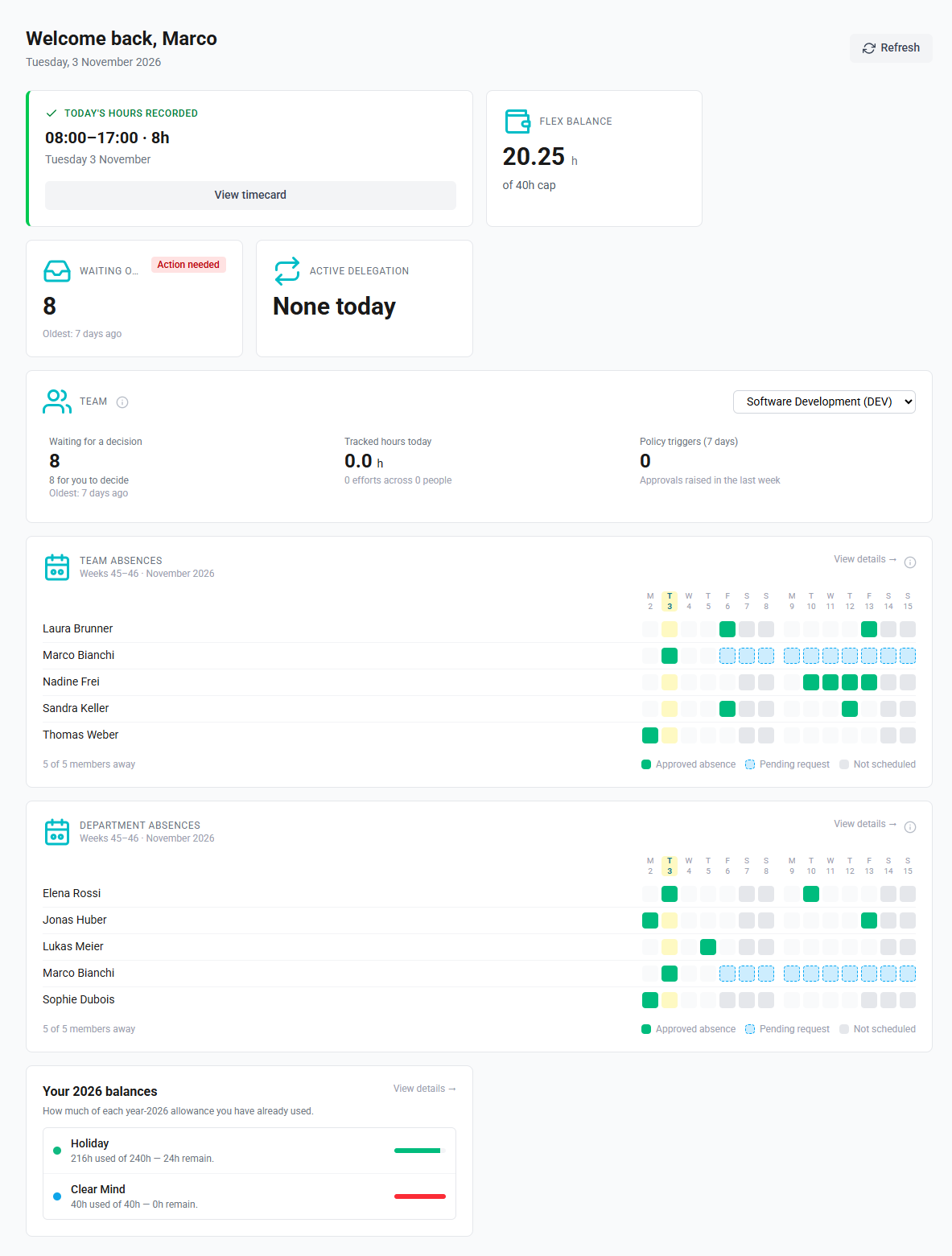
Record today
Record today records today's timecard in one step. It takes one of several forms, depending on your day:
| What the card shows | When | What it offers |
|---|---|---|
| Today's scheduled times and hours, with or without a break | Your schedule has you working today and you have no quick-log templates | Record 8 h for today, with your scheduled hours |
| The default template as a large button, the others under Other templates | You have at least one quick-log template | Record followed by the template's name and hours, for example Record Office day · 8 h, for each template |
| Off today, with the reason: a weekend, a bank holiday, or an off day in your schedule | Your schedule has you off today | Log anyway, which opens a timecard for today |
| No schedule assigned | You have no schedule and no templates | Open timecards |
| Today's hours recorded, with the times and hours | A timecard for today already exists | View timecard |
Templates take precedence over the schedule: once you have saved one, the card offers your templates on every day, including off days and days without a schedule. The default template is the one marked as default in your profile, or else the first in the list. Manage (or Add templates, before you have any) opens your profile, where templates are kept on the Timecards tab; see Your profile.
Recording always asks first. The confirmation Record today's hours? repeats the times, the hours and the date; select the record button in the dialog to save. A timecard from the schedule is recorded in the standard work category; one from a template uses the template's category, times, break and remarks. If the entry cannot be saved, for example because it exceeds an allowance, the card shows the reason.
How to record today from your schedule
- On the home page, find Record today.
- Select Record 8 h for today; the button shows your scheduled hours.
- Check the times in Record today's hours? and select the same button again.
How to record today from a template
- On Record today, select the template's button, or a template under Other templates.
- Check the times in the confirmation and select the button to record.
Today's location
Today's location appears when the schedule assignment covering today names a location. It shows the location, the schedule's name and today's times. On an off day it is dimmed and marked Off today. Selecting it opens My Schedule; see Seeing your working schedule.
Flex balance
Flex balance shows the hours in your hour bank, and the cap beneath it, in hours, when one applies. When the balance has reached the cap, the card says that further hours will not be banked. Selecting it opens the Absences tab of your profile, with the balance's history. See Flex and opening balances.
Your balances for the current year
This card lists your allowances for the current year, such as holiday, with how much is used, the total and what remains. Hours already requested but not yet decided count as used. The bar turns red when nothing remains. The card appears only if you hold at least one allowance.
Used and All at the top of the card choose what it lists:
- Used, the default, lists the allowances you have already drawn on this year. Until you have, the card says that no allowance has been used yet.
- All lists every allowance you hold.
ChronoHub remembers the choice in this browser. View details opens the Absences tab of your profile for the full breakdown.
Role cards
| Role | Card | What it shows | Opens |
|---|---|---|---|
| Employee, HR | Today's tracked hours | Hours in today's efforts, and how many | Efforts |
| Last effort | The date and description of your latest effort | Efforts | |
| My efforts awaiting approval | Your efforts still to be decided, and the oldest. Absence requests are not counted | Efforts | |
| My approver | Your approver, and their delegate if a delegation is active today | Your profile | |
| Manager | Waiting on me | Efforts and requests waiting for your decision, and the oldest; marked Action needed when there are any | Approvals |
| Active delegation | The person you have delegated your approvals to today, and until when; None today otherwise | Your profile | |
| Administrator | Pending approvals (org-wide) | Every effort and request still pending across the company | Approvals |
See Approvals and Recording efforts.
Seats over limit
When more seats are assigned than the plan includes, administrators see Seats over limit first on the page, marked Action needed. It shows how many seats are over, how many are in use, and how many days remain before all seats are removed. Selecting it opens Seats. See Seats.
Team, Team absences and Department absences
The Team card shows one team's waiting items, today's tracked hours and recent policy triggers; see The Team card.
Team absences shows who on your own team is away over the coming days, and opens the Team Calendar for that team. It covers the team's members and its manager, and does not appear if you neither belong to a team nor manage one. If you manage several teams, it shows the first in alphabetical order. It is read in the same way as the Department absences card, which shows your primary department; both are described in Department absences on the dashboard. To change how far ahead the two cards look, see Choosing how far ahead the absence cards look.