Signing in
ChronoHub asks for your email address first, finds your organisation's workspace from it, and then offers the ways your account may sign in: a password, single sign-on, or a passkey. This page covers signing in, setting and resetting a password, and two-factor authentication.
The sign-in page
The first step asks only for your Email. ChronoHub recognises your organisation from the address's domain. If it does not, the page reads We don't recognise that email's domain. Contact your administrator.
The second step shows your address with Use a different email beside it, and the options your account has:
| Option | When it appears |
|---|---|
| Sign in with SSO | Your organisation has set up single sign-on. See Single sign-on |
| Sign in with password | Always |
| Sign in with passkey | Your browser supports passkeys. You add a passkey on your profile first; see Your profile |
| Forgot your password? | Always |
If your administrator has given you a separate sign-in address, enter that address here. See Login email override.
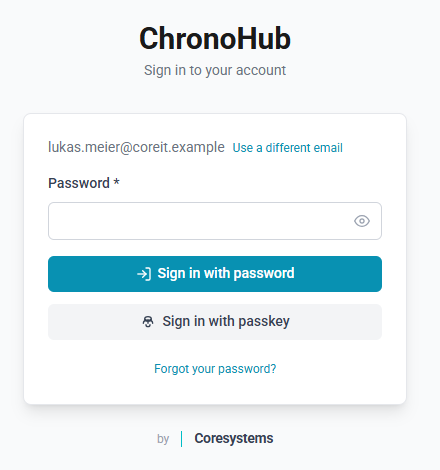
How to sign in with a password
- Open ChronoHub and enter your Email.
- Select Continue.
- Enter your Password.
- Select Sign in with password.
A session lasts 24 hours; after that, ChronoHub asks you to sign in again. After five failed attempts for one account within 15 minutes, further attempts are refused for a while: Too many login attempts for this account. Please try again later.
When single sign-on fails
ChronoHub returns you to the sign-in page with one of these messages.
| Message | What it means |
|---|---|
| This account is not authorized to sign in. Contact an administrator. | The account is inactive, or your identity provider does not grant you access to ChronoHub |
| The identity provider reported an error. Please try again. | Your organisation's sign-in service refused or cancelled the request |
| Could not complete single sign-on. Please try again. | The sign-in could not be completed between ChronoHub and the sign-in service |
| The identity returned by SSO does not match this account. Contact an administrator. | You signed in with a different identity from the one linked to this ChronoHub account |
| Single sign-on failed. Please try again. | Any other failure |
Passwords
Setting your first password
When an administrator or manager creates your account, ChronoHub can send an invitation email, Your ChronoHub account is ready. Its link is valid for 7 days and opens a page where you choose your password.
How to set your first password
- Open the link in the invitation email.
- Enter a New password of at least six characters.
- Enter it again under Confirm new password.
- Select Set new password.
- Select Continue to sign in.
If the link has expired, ask your administrator to send a new invitation. A new invitation, or a password reset, makes every earlier link invalid.
Forgotten passwords
How to reset your password
- On the sign-in page, select Forgot your password?.
- Enter your Email: your usual address, or your sign-in address if you have one.
- Select Send reset link.
- Open the link in the email within 60 minutes.
- Enter and confirm the New password, then select Set new password.
The confirmation reads the same whether or not the address belongs to an account. No email is sent for an inactive account or for an account that signs in only through single sign-on. The email always goes to your usual email address. Each link works once.
Administrators can send a reset link to anyone; managers can send one to people with the Employee role. See Employees. Until the new password is chosen, the current one keeps working.
Setting a password through a link ends the trust of every device, so the next sign-in on each asks for a two-factor code again.
Two-factor authentication
Two-factor authentication adds a six-digit code from an authenticator app, such as Google Authenticator, 1Password or Authy, to signing in with a password. It applies to password sign-in only: single sign-on relies on the verification of your organisation's identity provider, and a passkey is itself a second factor. ChronoHub therefore offers two-factor authentication only to people who have a ChronoHub password.
The suggestion after signing in
Until you enable it, ChronoHub suggests it after you sign in, on a page headed Add two-factor authentication. Set up 2FA starts the enrolment; Skip for now continues to ChronoHub, and the suggestion does not appear again. You can enable it at any time from your profile.
How to enable two-factor authentication
- Select Set up 2FA, or on your profile's Sign-in tab, select Enable 2FA.
- Scan the QR code with your authenticator app, or enter the secret shown below it.
- Enter the 6-digit code the app shows.
- Select Verify & enable.
- Store the ten Recovery codes shown, with Copy or Download, in a safe place such as a password manager.
- Select I have stored the codes.
The recovery codes are shown only once. Each one signs you in once in place of a code from the app; see Without your authenticator below.
Signing in with two-factor authentication
After your password, the Two-factor verification page asks for the Code from your app. Select Verify. Cancel signs you out. The page allows five minutes; after that, sign in again.
A browser that completes this step is trusted for 30 days: signing in there asks only for your password. You can see and forget trusted devices on your profile. A passkey never asks for a code, because the passkey is itself a second factor.
Without your authenticator
Without the app, you can still sign in:
- with one of your recovery codes;
- from a browser that is still trusted, with your password alone;
- with a passkey you added earlier.
How to sign in with a recovery code
- Sign in with your password.
- On the Two-factor verification page, select Use a recovery code instead.
- Enter one of your Recovery codes. Capitals and the hyphen do not matter.
- Select Verify.
Each code works once. The browser is not trusted afterwards, so the next sign-in asks again. ChronoHub sends you an email each time a recovery code is used, with the number of codes left.
How to move two-factor authentication to a new phone without the old one
- Sign in with a recovery code, as above.
- On your profile's Sign-in tab, turn two-factor authentication off with your password and another recovery code. See Your profile.
- Select Enable 2FA, and set it up on the new phone. You receive ten new recovery codes.
If you have neither the app, nor a recovery code, nor a trusted browser or passkey, ask an administrator to reset your two-factor authentication. See Employees.