Recording efforts
An effort records time worked for a business partner on a task: who worked, on which date, from when to when, and whether the time is chargeable. Efforts are recorded under Effort Management → Efforts, and are the basis for the documents created in SAP Business One.
Who records efforts for whom
| Role | May record efforts for |
|---|---|
| Administrator, HR | Anyone |
| Manager | Themselves and the members of the teams they manage |
| Employee | Themselves |
How to record an effort
- Open Effort Management → Efforts and select New.
- On the Details tab, choose the Business Partner.
- Choose the Task. Only tasks for that business partner are offered.
- Check the Description, which is filled in from the task and can be edited.
- Check the Employee, which starts with your own name.
- Enter the Date, Start and End, and the Break as HH:MM. Today and Now fill in the current date and time.
- Choose a Parent Object if the work belongs to one.
- Clear Chargeable if the time is not to be charged to the business partner.
- Select Save.
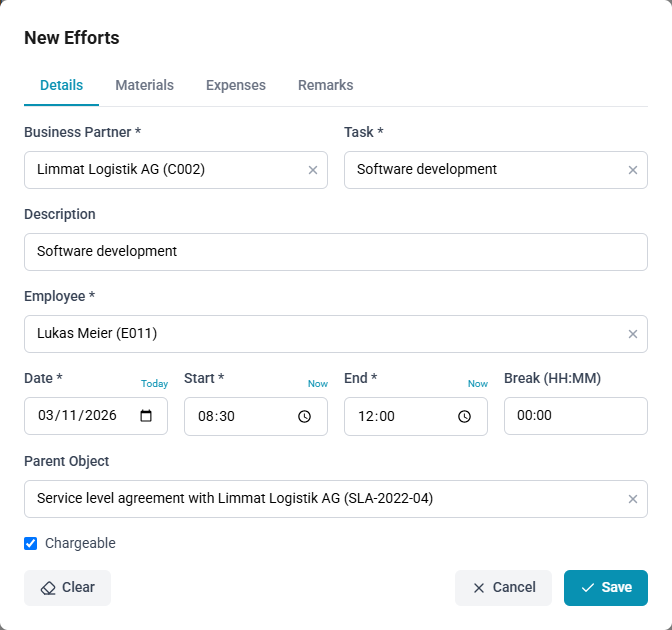
Choosing another business partner empties the task and the parent object. A task that has a parent object fills it in. An end time earlier than the start time is read as work past midnight, and the duration is calculated accordingly.
The other tabs
| Tab | What it holds |
|---|---|
| Materials | Items used during the effort. Each line has an item, an optional Quantity and its own Chargeable box |
| Expenses | Costs incurred during the effort. Each line has an item, an Amount, a Currency and its own Chargeable box. A line without a currency cannot be saved |
| Remarks | Internal Remarks, for your own organisation, and External Remarks, the text intended for the business partner. Each holds up to 250 characters |
Lines added on these tabs are saved with the effort and appear on the Materials and Expenses pages too. Saving the effort changes only the lines you changed: each keeps its receipts and an expense its own date. A line already included in a document in SAP Business One shows that document and cannot be changed or removed. See Materials and expenses, which also explains how an expense's currency is preselected.
The approver sees the external remarks on the approval card, and a validation policy can require them.
When an effort waits for approval
Saving checks the effort against the organisation's validation policies. When one applies, Efforts shows a warning that the effort is waiting for your approver, and the approver is notified. You can continue working, and you are notified once it has been decided. See Approvals.
While it waits, you may still edit the effort. Saving it checks the policies again, and if none applies, the effort stops waiting. After a rejection, correct the effort and save it to have it checked again.
A rejected effort shows, when opened, who rejected it and the approver's remarks, for example Rejected by Anna Keller. Remarks: Please add the customer reference. An approved effort shows the approver's remarks in the same way, when there are any.
When an effort is read-only
The form opens for viewing only, with a notice, in these cases:
| Case | Notice |
|---|---|
| The effort is included in a document in SAP Business One | This record has been closed and cannot be edited. |
| The effort has been approved | This effort has already been approved and can no longer be modified. |
| The effort belongs to someone you may not record for | You're viewing another employee's effort. Only the author can edit it; use the Approvals inbox to approve or reject. |
Administrators, HR and managers may edit the efforts of the people they may record for, but not closed or approved ones; approving still happens under Approvals. Closed efforts cannot be deleted.
Drafts
While you fill in a new effort, ChronoHub keeps a draft in this browser tab. If you leave the page or reload it before saving, Efforts reopens the form with your entries. Cancel, and Discard when closing with unsaved changes, remove the draft.
How to start a new effort afresh
- In the form, select Clear.
- Select Clear again to confirm that all unsaved input will be lost.
The list
- Show closed adds the efforts already included in a document. Their status shows the document, for example AR Invoice #1234.
- Show all employees (administrators and HR) and Show team members (managers) add the efforts of everyone you may see. Without it, the list shows your own efforts. The choice is remembered in this browser.
- From and To above the list narrow it to a period. When the list includes other people's efforts, Employee narrows it to one person. Select Apply, or Clear to show everything again.
- In the card view, Sort by orders the cards, and the button beside it switches between ascending and descending. In the table view, select a column heading. Both views keep the same order.
- In the table view, efforts are grouped by business partner. Hovering the ⓘ icon shows the parent object, remarks, chargeability and status; selecting it opens the effort's info card. In the card view, View opens the same card.
How to delete an effort
- Select Delete on the effort.
- Confirm the deletion.
Deleting an effort also deletes its materials and expenses, with their attachments. An effort cannot be deleted once it, or any of its materials and expenses, is included in a document in SAP Business One.
Importing efforts from SAP FSM
Administrators can import the efforts recorded in SAP FSM. Each import brings in the efforts recorded or edited in SAP FSM since the previous import. Imported efforts are not checked against validation policies.
Efforts are imported as the last step of an SAP FSM source's import.
How to import efforts from SAP FSM
- Open Integrations → FSM Sources.
- Select Import on the source's row.
- Follow the progress dialog. The Efforts step reports how many efforts were created, updated, deleted and skipped.