Requesting an absence
Absences such as holiday or sick leave are requested and approved before they count. The Requests page, under Time Management → Requests, is where requests are made, followed and withdrawn. The same page is used for work days that require a request, such as remote work; see Work days that require a request.
Once a request is approved, ChronoHub records its days as timecards, from the person's schedule, and draws the hours from the allowance.
Whose requests you see
| Role | Requests listed |
|---|---|
| Employee | Their own |
| Manager | Their own and those of the members of the teams they manage |
| Administrator, HR | Everyone's |
The buttons above the list filter it by state: All, Pending, Approved or Rejected. Each request shows its category, hours, dates, state and, once decided, who decided it and any remark they left.
Making a request
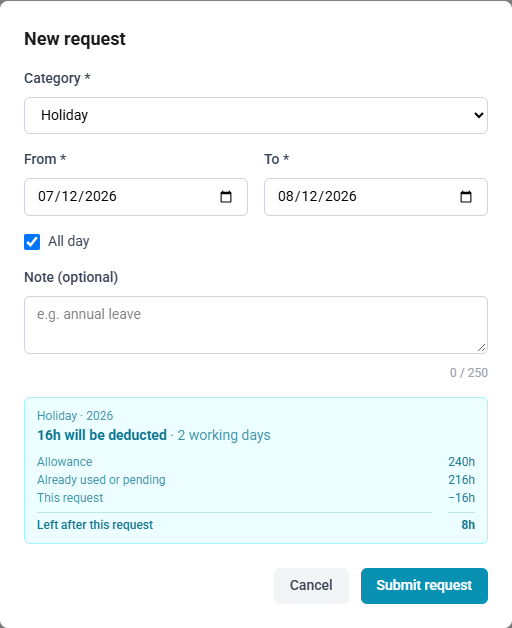
New request opens the request form.
| Field | What it holds |
|---|---|
| Employee | Shown to administrators, managers and HR, who may request for someone else: administrators and HR for anyone, managers for the members of their teams. Everyone else requests for themselves |
| Category | The absence categories, and the work categories that require a request |
| From, To | The first and last day |
| All day | Ticked, the request covers each day's scheduled hours. Cleared, it covers a Start time to End time window |
| Note (optional) | A note for your approver |
Past dates
A request may cover days already past, for an absence already taken. It is decided like any other request, and once approved its days are recorded as timecards and drawn from the allowance.
Part-day requests
Clear All day for part of a day, such as a morning. The same window is applied to every working day from From to To, and the times start from your schedule's hours. A day whose schedule cannot accommodate the window is skipped, and the preview lists it.
The preview
As soon as the form is complete, a preview shows what the request will cost before you submit it:
| Line | What it means |
|---|---|
| … will be deducted, for example 16h will be deducted | The hours your schedule expects on the days requested, with the number of working days |
| Allowance | Your allowance in this category for the year |
| Already used or pending | Hours approved, or requested and not yet decided |
| This request | The hours of this request |
| Left after this request | What remains; shown in red when it falls below zero |
Below, the preview lists the days that count for less or nothing: half-day public holidays, weekends, public holidays and days outside your schedule. View my schedule opens the schedule these days come from. The reasons are explained in Understanding the hours on an absence request.
If the request exceeds the allowance, the preview says either that overdraw is permitted for this employee, or that the request will be rejected. In the second case Submit request is unavailable: shorten the range, or ask an administrator to lift the limit. Whether overdrawn requests are blocked is set under Settings and on each employee.
A request is also refused when it overlaps another request that is pending or approved, when no schedule covers the dates, or when the dates contain no working hours.
How to request an absence
- Open Time Management → Requests and select New request.
- Choose the Category.
- Enter the From and To dates.
- For part of a day, clear All day and enter the Start time and End time.
- Optionally, enter a Note (optional).
- Check the preview.
- Select Submit request.
After submitting
The request is Pending and your approver is notified; while they have delegated their approvals, the delegate is. Approvers approve or reject requests under Approvals; see Approvals. You are notified of the decision.
How to change a pending request
- Open Time Management → Requests.
- Select Edit on the request.
- Change the fields, check the preview, and select Submit request.
Your approver is told of the change. A request can be edited only while it is pending, by its owner, an administrator or HR. If it is decided while you are editing, the change is refused.
Withdrawing and cancelling
| Request | Who may remove it | Button |
|---|---|---|
| Pending, your own | You | Delete |
| Approved, your own, not yet started | You | Cancel absence |
| Approved and already started | Administrators and HR | Delete |
| Any request of someone else | Administrators and HR | Delete |
Cancelling an approved absence removes it together with its timecards, returns the hours to the allowance, and notifies your approver. When an administrator or HR removes or changes your request, you are notified; see When somebody changes or deletes your records. A request whose timecards are closed cannot be removed.
Adding an absence to your calendar
Add to calendar on an approved request downloads an iCalendar (.ics) file, which Outlook, Apple Calendar and Google Calendar can import. To have every approved absence appear automatically, subscribe to your calendar feed instead, on your profile; see Your profile.